How to Get Started on Spur.Fit: Coach Onboarding Guide
SPUR.FIT
February 11, 2026
1. Account Setup & First-Time Onboarding
Create your coach account
Visit our SignUp page and click Create account (or Sign up). The page asks for an email, a password, and your basic details. You’ll immediately redirect to the URL to get started - trainer.spur.fit
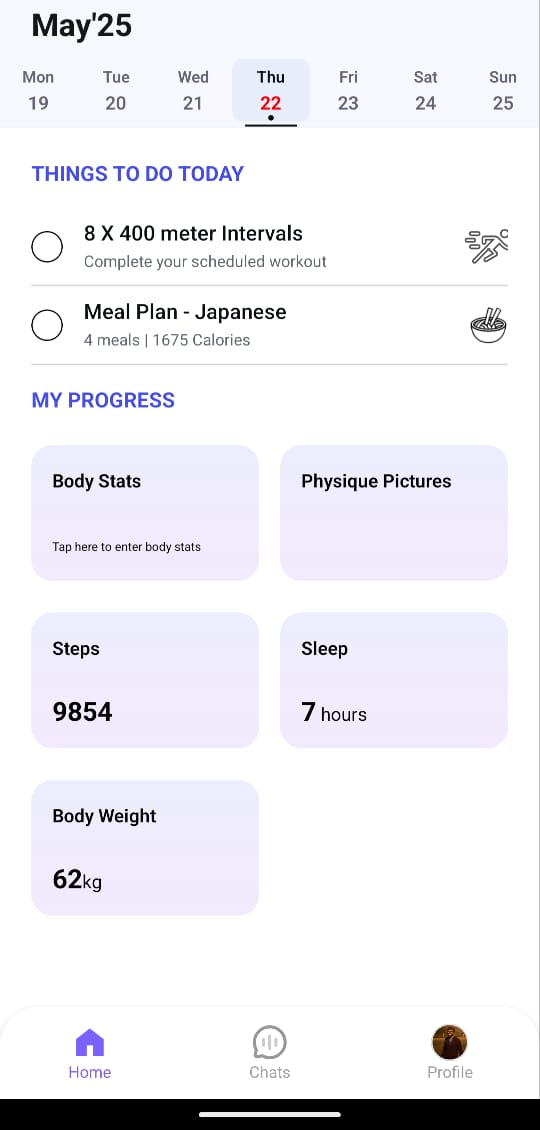
NOTE - The Coach Portal is on Laptop & Mobile app (limited experience on Mobile) and for Clients - Mobile App only (Android or iOS)
A five-card wizard pops up the first time you log in (questions on business size, coaching style, primary goal, etc.). Your answers let Spur.Fit pre-load the right workout and meal-plan templates.
Add branding (optional but recommended)
Go to Settings → Branding. Upload your logo and enter a hex color; the client app, PDFs, and check-in emails will carry your colors automatically.
Top bar – Global search box, a purple Add Client button, and your profile avatar.
Home screen – A client table appears by default, grouped into Active, Pending, Archived, Leads tabs. Each row shows Program, Meal Plan, Compliance %, Last Login, Last Workout, and an ⋯ Actions button.
3. Client Management
3.1 Adding new clients
Manual method
Click the purple Add Client button (top right of Home).
Fill in name, email, time-zone, starting stats, and any tags.
Hit Save & Send Invite. The client receives an email to create their password.
Invite-link method
In the Home table, click ⋯ Actions → Copy Invite Link for any row marked “Lead.”
Paste the link into WhatsApp, Instagram DM, or email.
3.2 Understanding statuses
Active – The client has accepted the invite and at least one program or workout.
Pending – Invite sent, but the client hasn’t finished registration.
Archived – Coaching paused; data stays in read-only mode and the app is locked for the client.
Leads – People you’re nurturing who haven’t received an invite yet.
3.3 Tracking client progress
Click a client’s name to open their profile.
The Summary tab shows weight charts, progress photos, and overall compliance.
Notes lets you jot down injuries, preferences, or upcoming travel.
Flip to Schedule to reorder workouts or drag-and-drop missed sessions.
Enable Compliance Alerts (bell icon) to get a push notification whenever the client’s adherence drops below your chosen threshold.
4. Workout Creation
4.1 Choose your builder
Ask Co-Pilot – Fastest route. Answer a few prompts and get a ready-to-assign workout in seconds.
Text → AI – Type a free-form prompt such as “45-min no-equipment HIIT for beginners.” The AI structures sets and reps automatically.
Manual Builder – Start from a blank canvas for total control.
You’ll find all three under Fitness → Workouts → New Workout.
4.2 Using the Exercise Library
Filter by muscle group, equipment, difficulty, or mechanics (e.g., unilateral).
Hover any exercise to preview the demo video.
To upload your own demo: click Upload Video, trim to 8–15 s, and save.
Star an exercise to make it appear first in search and AI suggestions.
4.3 Structuring sessions
Add a Warm-Up block (mobility or light cardio).
Drag in Main Sets—supersets, circuits, EMOMs. Rename blocks for clarity.
Finish with Cooldown / Stretch.
Click Preview to check flow, then Save.
4.4 Assigning workouts
Inside the editor, hit Assign → Select Client(s) or Program → Pick dates or “Add to Library.”
Clients get an instant push notification plus an email summary.
5. Meal Plan Creation
5.1 Four ways to build
Ask Co-Pilot – Tell the AI the goal (“high-protein vegetarian”) and watch it draft a full day.
Food-Based AI – Type preferred foods (“oats, paneer, chickpeas”). The planner balances macros around them.
Macro-Based – Enter total calories + protein/fat/carb grams; AI selects foods to match.
Text-Only – Paste a recipe list or simple meal guidelines in markdown.
5.2 Editing & macro control
Click any meal card to swap foods or change quantities; the macro bar at the top turns green when within ±5 % of target.
Drag meals to reorder or duplicate.
5.3 Assigning & collecting feedback
Hit Assign → Choose Client(s) → Start Date.
Clients can rate each meal 👍/👎 and leave comments or photo swaps. All feedback appears on "CHAT" as well as on the plan under the "Schedule" Ta
6. Programs
Navigate to Fitness → Programs → New Program.
Give it a name and drag in Workouts, Meal Plans, Habit Cards, and scheduled Messages.
Set repeat rules (e.g., Workout A every Mon/Wed/Fri for six weeks).
You can also, click on "Templates" & create a new one to reuse later.
Assign the program to individual clients or batches; everything drops neatly onto their in-app calendars.
Under Deliver, pick a one-off date or a recurring schedule (e.g., every Sunday at 7 PM).
Results land in Forms → Submissions and also appear on each client’s timeline.
8. Payment Integration
Open Payments and click Connect Stripe or Connect Razorpay.
Paste your secret keys, then press Verify & Activate. A green “Active” badge confirms the link.
Create your first product under Payments → Products → New Product. Add a name, price, and billing interval (one-time, monthly, etc.).
Need a quick pay link? Go to Payments → Links → Generate, choose the product, and share the generated URL with a client. Transactions sync automatically to their profile.